

ChatGPT can help with writing, research, SEO, coding, graphic design, business planning, and many other tasks. But typing long instructions again and again can take time. Custom prompt shortcuts make these tasks easier by using short commands to describe what you want ChatGPT to do.
For example, you can use /rewrite to improve existing text, /seo to review an article for search intent, /study to learn a topic step by step, or /imageprompt to create a detailed AI image-generation prompt. These are custom shortcuts that you define and reuse, rather than a universal set of built-in ChatGPT commands.
In this guide, you will find 160+ ChatGPT custom prompt shortcuts organized into eight categories. Each shortcut includes a short explanation of its purpose, so you can quickly find the right instruction for writing, research, productivity, creative work, or technical tasks.
If you also use ChatGPT for image editing, check out our guides to 50+ ChatGPT Photo Editing Prompts and 50+ ChatGPT Photo Editing Prompts for Selfies and Portraits. These articles cover ready-to-use prompts for improving photographs and creating different visual styles.
Unlimited Downloads
Over 1,500,000+ Fonts, Mockups, Freebies & Design Assets

In This Article
- Introduction
- Learning and study ChatGPT shortcuts
- Writing and editing ChatGPT shortcuts
- SEO and blogging ChatGPT shortcuts
- Research and analysis ChatGPT shortcuts
- Productivity and business ChatGPT shortcuts
- Design and creative ChatGPT shortcuts
- Coding and technical ChatGPT shortcuts
- Advanced thinking and response control ChatGPT shortcuts
- How to use ChatGPT custom prompt ChatGPT shortcuts
- Tips for getting better results
- Last Words
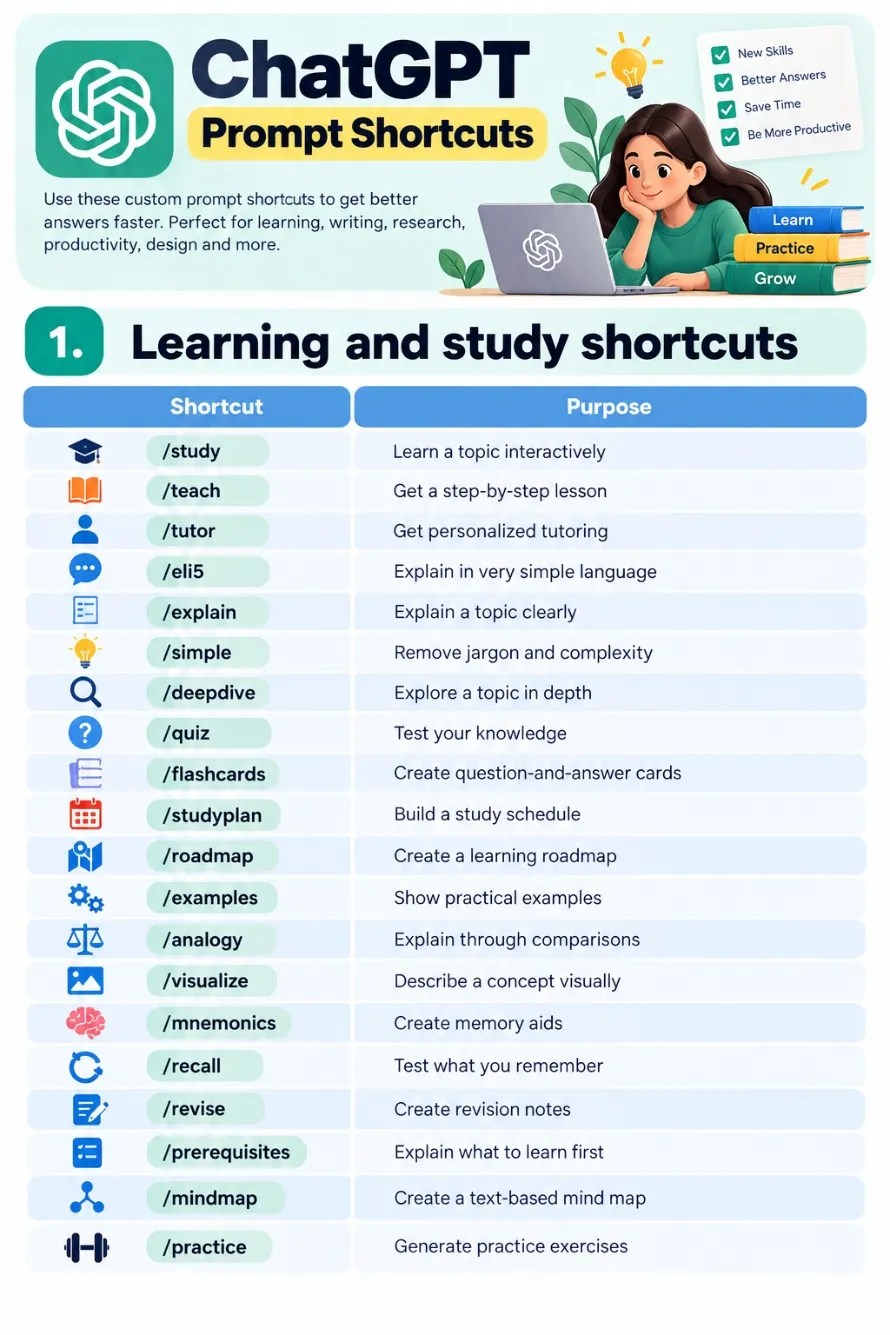
1. Learning and Study Shortcuts
Learning shortcuts help you understand difficult subjects, prepare for exams, practice new skills, and organize study material. You can use them to ask ChatGPT for simple explanations, practical examples, quizzes, flashcards, and step-by-step lessons. They are useful for students, teachers, designers, developers, and anyone learning something new.
| Shortcut | Purpose |
|---|---|
| /study | Learn a topic interactively |
| /teach | Get a step-by-step lesson |
| /tutor | Get personalized tutoring |
| /eli5 | Explain a topic in very simple language |
| /explain | Explain a topic clearly |
| /simple | Remove jargon and complexity |
| /deepdive | Explore a topic in depth |
| /quiz | Test your knowledge |
| /flashcards | Create question-and-answer cards |
| /studyplan | Build a study schedule |
| /roadmap | Create a learning roadmap |
| /examples | Show practical examples |
| /analogy | Explain through comparisons |
| /visualize | Describe a concept visually |
| /mnemonics | Create memory aids |
| /recall | Test what you remember |
| /revise | Create revision notes |
| /prerequisites | Explain what to learn first |
| /mindmap | Create a text-based mind map |
| /practice | Generate practice exercises |
2. Writing and Editing Shortcuts
Writing shortcuts help you draft new content, improve existing text, correct grammar, and adjust tone. They are useful for blog posts, emails, social media captions, product descriptions, reports, and everyday communication. Instead of explaining the same editing instructions every time, you can define a shortcut and reuse it whenever needed.
| Shortcut | Purpose |
|---|---|
| /write | Draft new content |
| /rewrite | Rewrite existing text |
| /improve | Improve clarity and quality |
| /proofread | Check grammar and spelling |
| /grammar | Correct grammatical errors |
| /paraphrase | Express the same idea differently |
| /summarize | Summarize longer content |
| /tldr | Give the key points briefly |
| /expand | Add more detail |
| /shorten | Reduce the word count |
| /humanize | Make wording more natural |
| /simplify | Make text easier to understand |
| /professional | Use a professional tone |
| /formal | Use formal language |
| /casual | Use a conversational tone |
| /persuasive | Make writing more convincing |
| /creative | Explore creative approaches |
| /headline | Generate headlines |
| /outline | Build a structured outline |
| /continue | Continue a draft or story |

3. SEO and Blogging Shortcuts
SEO shortcuts can help bloggers plan content, improve article structure, identify keyword opportunities, and review on-page SEO elements. They are particularly useful when working on large websites with many articles. Use them to organize your workflow, but check current search data and reliable sources when making SEO decisions.
| Shortcut | Purpose |
|---|---|
| /seo | Review content for search intent and SEO |
| /keyword | Research or brainstorm keywords |
| /searchintent | Identify what searchers want |
| /metatitle | Write SEO title tags |
| /metadescription | Write meta descriptions |
| /blogoutline | Build a blog post outline |
| /introduction | Draft an article introduction |
| /conclusion | Write an article conclusion |
| /faq | Generate frequently asked questions |
| /schema | Draft structured data markup |
| /internallinks | Suggest internal linking opportunities |
| /contentgap | Identify missing topics |
| /contentrefresh | Update older content |
| /competitor | Analyze supplied competitor content |
| /topicalmap | Build a topic cluster |
| /alttext | Write image alt text |
| /slug | Suggest URL slugs |
| /ctr | Improve titles for click-through rate |
| /eeat | Review trust and credibility signals |
| /contentaudit | Evaluate an article or content page |

4. Research and Analysis Shortcuts
Research shortcuts help you investigate topics, examine information, compare alternatives, and organize findings. You can use them when researching products, reviewing competitors, checking factual claims, or making decisions. For important topics, ask ChatGPT to support its conclusions with reliable sources instead of relying on unsupported statements.
| Shortcut | Purpose |
|---|---|
| /research | Investigate a topic |
| /verify | Check claims against evidence |
| /factcheck | Identify potentially inaccurate statements |
| /analyze | Analyze supplied information |
| /compare | Compare two or more options |
| /proscons | List advantages and disadvantages |
| /rank | Rank options using stated criteria |
| /evaluate | Assess quality or performance |
| /critique | Identify weaknesses |
| /sources | Find or provide supporting sources |
| /evidence | Separate evidence from assumptions |
| /trends | Examine trends using current research when needed |
| /statistics | Analyze or explain statistical data |
| /extract | Extract key information from supplied material |
| /table | Organize information into a table |
| /timeline | Arrange events chronologically |
| /keypoints | List the main takeaways |
| /counterargument | Present opposing arguments |
| /rootcause | Investigate possible underlying causes |
| /recommend | Recommend options using your criteria |

5. Productivity and Business Shortcuts
Productivity shortcuts help you organize tasks, plan projects, manage communication, and make better use of your time. Business owners, freelancers, content creators, and small teams can use these instructions to prepare reports, write emails, develop strategies, and turn broad goals into practical actions.
| Shortcut | Purpose |
|---|---|
| /plan | Create an action plan |
| /todo | Generate a task list |
| /checklist | Create a checklist |
| /prioritize | Rank tasks by importance |
| /schedule | Organize tasks by time |
| /goals | Turn objectives into measurable goals |
| /brainstorm | Generate ideas |
| /decide | Compare choices and trade-offs |
| /strategy | Develop a strategy |
| /workflow | Design a repeatable process |
| /template | Create a reusable template |
| Draft an email | |
| /reply | Write a reply to a message |
| /negotiation | Prepare negotiation points |
| /meetingnotes | Organize meeting notes |
| /report | Draft a report |
| /proposal | Create a proposal |
| /businessideas | Generate business ideas |
| /monetize | Explore monetization options |
| /nextsteps | Identify the next practical actions |

6. Design and Creative Shortcuts
Design shortcuts are useful for graphic designers, illustrators, marketers, and content creators. They can help you develop visual concepts, select fonts and colors, plan layouts, prepare image-generation prompts, and create content for social media. You can also use them to explore alternative design directions before starting work in your preferred design software.
| Shortcut | Purpose |
|---|---|
| /design | Develop a design concept |
| /imageprompt | Write an AI image-generation prompt |
| /logo | Generate logo concepts |
| /branding | Develop brand identity ideas |
| /typography | Suggest typography approaches |
| /fontpairing | Recommend font combinations |
| /colorpalette | Suggest a color palette |
| /layout | Plan a page or composition |
| /mockup | Develop a mockup concept |
| /artdirection | Define a visual direction |
| /moodboard | Build a mood board description |
| /photoshop | Explain or plan a Photoshop task |
| /illustrator | Explain or plan an Illustrator task |
| /uiux | Review or develop UI/UX concepts |
| /caption | Write social media captions |
| /hashtags | Generate relevant hashtags |
| /socialpost | Draft a social media post |
| /thumbnail | Develop a video thumbnail concept |
| /variations | Generate alternative creative versions |
| /styleguide | Create visual style guidelines |

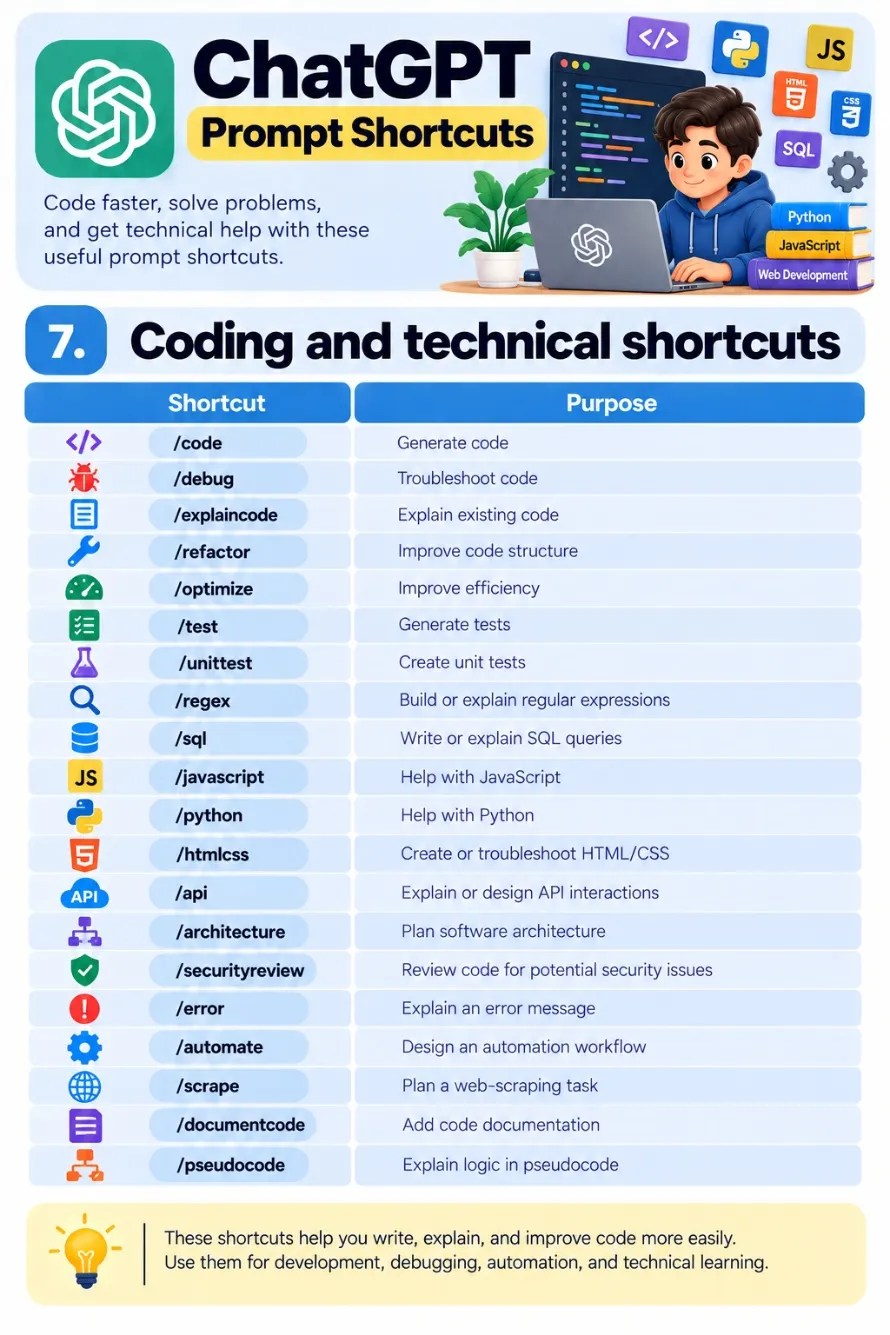
7. Coding and Technical Shortcuts
Coding shortcuts can help you generate code, troubleshoot errors, explain programming concepts, and plan technical workflows. They are useful for beginners as well as experienced developers working with JavaScript, Python, HTML, CSS, SQL, APIs, and automation. Always test generated code before using it in a live website or production environment.
| Shortcut | Purpose |
|---|---|
| /code | Generate code |
| /debug | Troubleshoot code |
| /explaincode | Explain existing code |
| /refactor | Improve code structure |
| /optimize | Improve efficiency |
| /test | Generate tests |
| /unittest | Create unit tests |
| /regex | Build or explain regular expressions |
| /sql | Write or explain SQL queries |
| /javascript | Help with JavaScript |
| /python | Help with Python |
| /htmlcss | Create or troubleshoot HTML/CSS |
| /api | Explain or design API interactions |
| /architecture | Plan software architecture |
| /securityreview | Review code for potential security issues |
| /error | Explain an error message |
| /automate | Design an automation workflow |
| /scrape | Plan a web-scraping task |
| /documentcode | Add code documentation |
| /pseudocode | Explain logic in pseudocode |
8. Advanced Thinking and Response Control Shortcuts
These shortcuts help you control how ChatGPT structures and presents its answers. You can use them to request a particular level of detail, define a role, set restrictions, explore alternatives, or review an answer against specific requirements. Combining two or three clearly defined shortcuts can make your instructions more precise.
| Shortcut | Purpose |
|---|---|
| /actas | Ask ChatGPT to adopt a role |
| /stepbystep | Break a task into steps |
| /no-fluff | Avoid unnecessary explanation |
| /detailed | Provide a thorough answer |
| /beginner | Target beginners |
| /expert | Use advanced terminology and depth |
| /bulletpoints | Use bullet points |
| /json | Request JSON output |
| /wordcount | Specify or check a word count |
| /constraints | Follow specific restrictions |
| /options | Generate multiple alternatives |
| /prosandcons | Compare trade-offs |
| /assumptions | State assumptions explicitly |
| /edgecases | Identify unusual cases |
| /risks | Identify potential risks |
| /improveprompt | Improve a prompt |
| /selfreview | Review an answer against criteria |
| /secondopinion | Consider an alternative viewpoint |
| /goodbetterbest | Present three levels of solutions |
| /finalcheck | Check the result against requirements |

How to Use ChatGPT Custom Prompt Shortcuts
These shortcuts are not all official ChatGPT commands. They are custom labels that represent instructions you want ChatGPT to follow. Typing /seo or /rewrite does not automatically activate a special feature unless you have configured that behavior.
There are three simple ways to use them.
1. Type the shortcut with your request
The quickest method is to type a shortcut followed by the task you want to complete.
Example:
/rewrite Make this paragraph clearer and easier to understand without changing its meaning.
Another example:
/imageprompt Create a detailed prompt for a minimal business card mockup on a white background.
ChatGPT can interpret the label from the surrounding instruction and respond accordingly.
2. Combine multiple shortcuts
You can combine shortcuts when a task needs more than one type of instruction. For example, you might want a short answer in a table, or a detailed explanation written for beginners.
Example 1: SEO article review
/seo /critique Review this article for search intent, missing topics, weak headings, and opportunities to improve its content.
Example 2: Graphic design prompt
/imageprompt /constraints Create a minimal logo design prompt using two colors, simple geometry, and a white background. Do not include mockups or extra decorative elements.
Example 3: Learning a technical topic
/study /beginner Teach me JavaScript step by step. Explain each concept in simple language and give me a short exercise before moving forward.
3. Define shortcuts in Custom Instructions
If you use the same shortcuts regularly, define their meanings in ChatGPT Custom Instructions or the instructions for a dedicated Project. This helps ChatGPT follow your preferred format more consistently.
For example, you could define these shortcuts:
- /no-fluff = Answer directly and remove unnecessary details.
- /study = Teach one concept at a time, use examples, and check my understanding.
- /seo = Review search intent, article structure, keyword use, and content quality.
- /rewrite = Improve clarity while preserving the original meaning and tone.
- /imageprompt = Write a detailed image-generation prompt with subject, style, lighting, composition, and background.
- /table = Present comparable information in a clear table.
You can find official information about this feature in the ChatGPT Custom Instructions guide.
Note that the /study label in this list is a custom shortcut. ChatGPT also has an official Study Mode feature, which you can activate through the tools menu or by visiting ChatGPT Study Mode.
Tips for Getting Better Results
Custom shortcuts work best when their meanings are clear and consistent. Keep these tips in mind when creating your own set.
- Use clear definitions: Explain exactly what each shortcut should do rather than relying on its name alone.
- Add the task after the shortcut: A label such as /rewrite works better when you include the text and explain your goal.
- Combine related instructions: Use a small number of relevant shortcuts instead of combining many unrelated commands.
- Set limits when needed: Specify the desired word count, tone, format, audience, and other requirements.
- Provide examples: If you want a particular writing style or output structure, show ChatGPT an example.
- Review important results: Check facts, sources, code, and other details before publishing or using the output.
- Keep your shortcut list manageable: Start with the commands you use most often and add more as your workflow develops.
Last Words
These 160+ ChatGPT custom prompt shortcuts cover a wide range of tasks, including learning, writing, SEO, research, productivity, graphic design, coding, and response formatting. They provide a simple way to organize your instructions and reuse them across different projects.
You do not need to use every shortcut. Start with a few that match your daily work, define what they mean, and reuse them when needed. For example, a blogger might use /seo, /outline, and /contentrefresh, while a designer might prefer /imageprompt, /branding, and /fontpairing.
The main benefit is convenience. Once your shortcuts are clearly defined, you can spend less time repeating instructions and more time improving the final result.


